
I have migrated over 40 WordPress sites in the last three years. Every single one that skipped 301 redirects lost between 30% and 60% of its organic traffic within the first month. The traffic never came back on its own. It had to be fixed with redirects after the fact, and by then Google had already deindexed the old URLs.
A 301 redirect tells search engines and browsers that a page has permanently moved to a new URL. When Google crawls the old URL and receives a 301 response, it transfers the ranking signals, backlinks, and authority from the old page to the new one. Without this signal, Google treats the old URL as a dead page and the new URL as brand new content with zero history.
This is the exact process I use to set up 301 redirects in WordPress, whether the project involves a single URL change or a full domain migration.
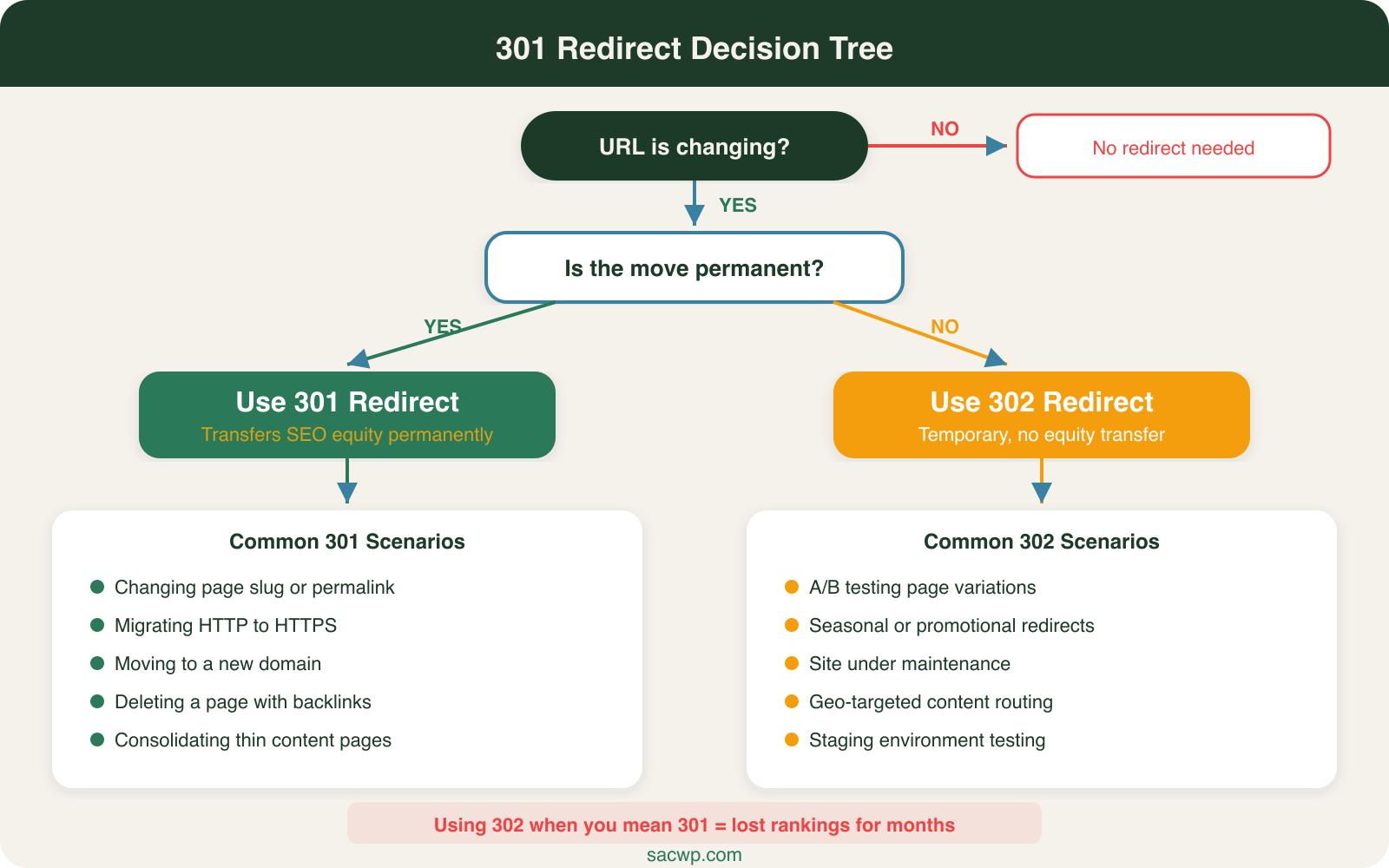
When You Need a 301 Redirect
Not every URL change requires a redirect. But these situations always do:
- Changing a page slug or permalink from
/our-services/to/wordpress-development/ - Migrating from HTTP to HTTPS (WordPress handles this automatically if configured correctly, but verify)
- Moving to a new domain from
oldsite.comtonewsite.com - Deleting a page that receives traffic or has backlinks pointing to it
- Restructuring your site architecture and changing URL patterns
- Consolidating thin content by merging two underperforming pages into one stronger page
I check Google Search Console before deleting any page. If a URL has impressions, clicks, or indexed backlinks, it gets a 301 redirect. No exceptions. Skipping this step is one of the most common SEO mistakes I see on WordPress sites.
Method 1: Redirection Plugin (Recommended for Most Sites)
The Redirection plugin by John Godley has over 2 million active installations and handles 301 redirects without touching server config files. I use it on about 80% of client sites.
Installation and Setup
- Go to Plugins > Add New in your WordPress dashboard
- Search for “Redirection” by John Godley
- Click Install Now, then Activate
- Navigate to Tools > Redirection
- Run the setup wizard. Enable “Monitor permalink changes” and “Keep a log of redirects”
The setup wizard asks if you want to monitor permalink changes in WordPress. Always say yes. This automatically creates a 301 redirect whenever you change a post or page slug through the WordPress editor. It catches changes that would otherwise create broken links silently.
Adding a Redirect Manually
- Go to Tools > Redirection
- Under “Add new redirection,” enter the Source URL (the old path, like
/old-page/) - Enter the Target URL (the new path, like
/new-page/) - The default type is “301 Moved Permanently.” Leave this selected.
- Click Add Redirect
Keep source URLs as relative paths (start with /) rather than full URLs. This makes your redirects portable if you change domains later.
Importing Redirects in Bulk
For site migrations with dozens or hundreds of URL changes, manual entry is too slow. The Redirection plugin accepts CSV imports.
Create a CSV file with two columns:
“ /old-page-1/,/new-page-1/ /old-page-2/,/new-page-2/ /blog/old-post-title/,/blog/new-post-title/ “
Go to Tools > Redirection > Import/Export, upload the CSV, and the plugin creates all redirects at once. I used this on a 200-page site migration last year and had every redirect live within five minutes.
Method 2: RankMath Redirections
If you already run RankMath as your SEO plugin, it has a built-in redirection manager. No need for a second plugin.
- Go to RankMath > Redirections in your WordPress dashboard
- Click Add New
- Enter the Source URL pattern
- Select 301 Permanent Redirect as the redirect type
- Enter the Destination URL
- Click Add Redirection
RankMath also monitors 404 errors automatically. Navigate to RankMath > 404 Monitor to see which URLs are returning “page not found” responses. You can create a redirect directly from the 404 log with one click. This is the fastest way to find and fix broken URLs after a migration.
One feature I use on every RankMath site: enable “Auto redirect when post URL changes” under RankMath > General Settings > Redirections. This catches permalink changes the same way the Redirection plugin does.
Method 3: .htaccess Redirects (Server Level)
For sites on Apache hosting (which covers most WordPress hosting including cPanel environments), you can add 301 redirects directly to the .htaccess file. These redirects execute at the server level before WordPress even loads, making them the fastest option.
Single Page Redirect
Connect to your site via SFTP or use cPanel’s File Manager. Open the .htaccess file in your WordPress root directory. Add redirect rules above the # BEGIN WordPress block:
“`apache
# Custom 301 Redirects Redirect 301 /old-page/ https://yoursite.com/new-page/ Redirect 301 /old-post/ https://yoursite.com/new-post/ “`
Pattern-Based Redirects with mod_rewrite
For redirecting entire directories or URL patterns, use RewriteRule:
“`apache RewriteEngine On
# Redirect entire /blog/ directory to /articles/ RewriteRule ^blog/(.*)$ /articles/$1 [R=301,L]
# Redirect old category structure RewriteRule ^category/(.*)$ /topics/$1 [R=301,L] “`
Important: Always back up your .htaccess file before editing. A syntax error will take your entire site offline. I keep a copy in a _backups/ folder on every site I manage.
Nginx Servers
If your WordPress host runs Nginx instead of Apache (Cloudways, Kinsta, RunCloud), .htaccess rules do not work. Add redirects to your Nginx config instead:
“`nginx server { # Single redirect rewrite ^/old-page/$ /new-page/ permanent;
# Pattern redirect rewrite ^/blog/(.*)$ /articles/$1 permanent; } “`
Most managed WordPress hosts provide a redirect interface in their control panel, so you rarely need to edit Nginx config directly.
Testing Your 301 Redirects
Setting up redirects without testing them is asking for trouble. I test every redirect immediately after creating it.
Browser test: Type the old URL into your browser address bar. You should land on the new URL with no errors.
HTTP header check: Use a tool like httpstatus.io or run a curl command in your terminal:
“bash curl -I https://yoursite.com/old-page/ “
Look for HTTP/1.1 301 Moved Permanently in the response and a Location: header pointing to the new URL. If you see a 302 instead of a 301, the redirect is set as temporary, and Google will not transfer SEO value.
Bulk testing: For migrations, I export a list of old URLs and run them through Screaming Frog’s “List” mode. It checks every URL and flags any that return 404, 302, or redirect chain errors.
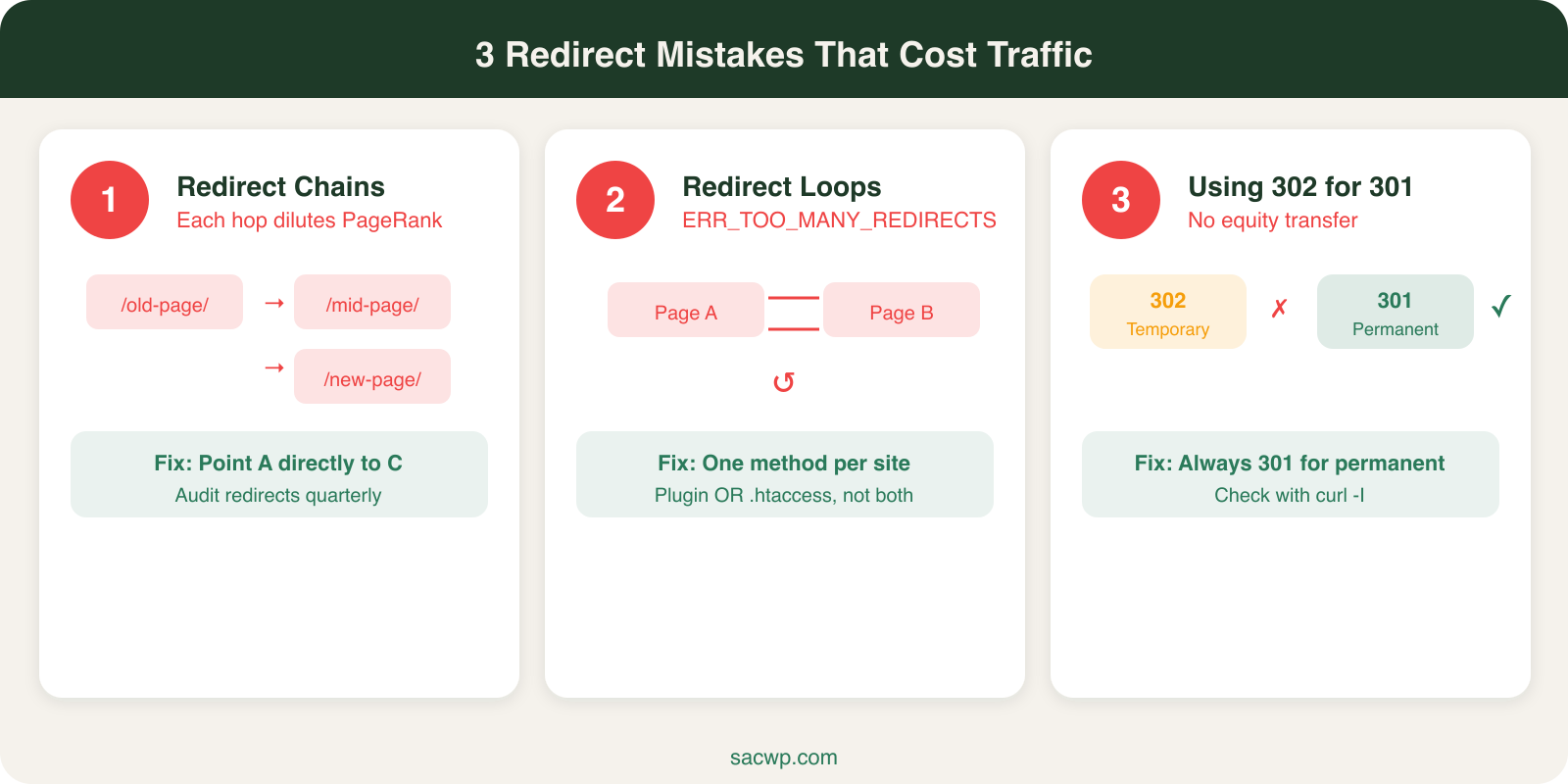
Common 301 Redirect Mistakes
I fix these problems on client sites regularly. Each one costs organic traffic.
Redirect Chains
A redirect chain happens when URL A redirects to URL B, which redirects to URL C. Each hop dilutes PageRank and slows down the page load. Google follows up to 10 redirects but recommends keeping chains to a single hop.
Fix: Point URL A directly to URL C. Audit your redirects quarterly to catch chains that build up over time.
Redirect Loops
A redirect loop occurs when URL A redirects to URL B, and URL B redirects back to URL A. The browser returns an “ERR_TOO_MANY_REDIRECTS” error and the page never loads.
This usually happens when you set up conflicting rules in different locations (one in the Redirection plugin and another in .htaccess). Pick one method per site and stick with it.
Using 302 Instead of 301
A 302 tells Google the move is temporary. Google keeps the old URL in its index and does not transfer link equity. I have seen sites lose rankings for months because a developer used 302 redirects during a migration and never switched them to 301. If the move is permanent, the redirect must be 301.
Not Redirecting HTTP to HTTPS
After installing an SSL certificate, every HTTP URL must 301 redirect to its HTTPS equivalent. WordPress sites should have this in .htaccess:
“apache RewriteEngine On RewriteCond %{HTTPS} off RewriteRule ^(.*)$ https://%{HTTP_HOST}%{REQUEST_URI} [R=301,L] “
Most WordPress hosting control panels (cPanel, Plesk) have a “Force HTTPS” toggle that adds this rule automatically.
301 Redirects and Site Migrations
Full site migrations are where 301 redirects matter most. I follow a strict process for every migration project.
Before the migration:
- Crawl the entire old site with Screaming Frog and export every URL
- Download the backlink profile from SEMrush, Ahrefs, or Google Search Console
- Map every old URL to its new equivalent in a spreadsheet
- Identify pages with the highest traffic and backlinks. These are the priority redirects.
During the migration:
- Implement all 301 redirects before switching DNS
- Test a sample of redirects on the staging environment
After the migration:
- Submit the new sitemap to Google Search Console
- Monitor the 404 report in Search Console daily for two weeks
- Check the Coverage report for crawl errors
- Track organic traffic in Google Analytics for 30 days
A properly redirected migration loses 10-15% of traffic temporarily while Google recrawls. Without redirects, the loss is 40-60% and recovery takes 6-12 months. I have seen it happen on three separate client sites before they came to me for help, and each one took months of redirect work and strategic effort to improve their Google rankings back to pre-migration levels.
301 Redirects and WordPress SEO Plugins
Both RankMath and Yoast Premium include redirect management. If you already pay for one of these plugins, use the built-in feature instead of adding another plugin.
RankMath (free): Built-in redirect manager, 404 monitor, auto-redirect on slug change. No additional cost. This is why I recommend RankMath as the default SEO plugin on every WordPress site I build.
Yoast Premium ($99/year): Redirect manager included in the premium tier. The free version does not handle redirects. If you run Yoast Free, pair it with the Redirection plugin.
Redirection plugin (free): Standalone redirect management with logging, 404 tracking, and regex support. Best option if you use a lightweight SEO plugin or no SEO plugin at all.
All three options work well. The worst choice is having no redirect solution at all, which is the situation on roughly half the WordPress sites I audit. Good WordPress blog SEO depends on a clean URL structure, and 301 redirects are how you maintain that structure as your site evolves.
Do 301 redirects hurt SEO?
No. Google’s John Mueller has confirmed multiple times that 301 redirects do not cause a loss of PageRank. The small processing delay is negligible. The only SEO risk comes from not using redirects when URLs change, which results in 404 errors and lost link equity.
How long should I keep 301 redirects active?
Keep them permanently, or at least for one year. Google needs time to recrawl your site, update its index, and transfer all ranking signals. I keep redirects active indefinitely on every client site because the server overhead is essentially zero, and removing them risks breaking external links you do not control.
Can I redirect multiple old URLs to one new page?
Yes. This is called a many-to-one redirect, and it is the correct approach when consolidating thin content. If you have five weak pages about related topics, merge them into one comprehensive post and 301 redirect all five old URLs to the new one. The combined authority makes the new page stronger. This is a core part of fixing keyword research mistakes where thin content gets spread across too many low-value pages.
What is the difference between a 301 and a 308 redirect?
Both are permanent redirects. A 301 allows the browser to change the request method (POST can become GET). A 308 preserves the original request method. For WordPress SEO purposes, 301 is the standard. Use 308 only if you are redirecting form submissions or API endpoints where the request method matters. Every WordPress redirect plugin defaults to 301, and that is the right choice for content pages.
If your WordPress site has broken links, missing redirects, or a migration that went sideways, I fix these problems every week. Get in touch and I will audit your redirects and build a plan to recover your organic traffic.