
I build WordPress sites that publish thousands of blog posts per year across multiple properties. The sites that grow fastest all share one habit: they use Google Analytics to measure content marketing performance at every stage of the funnel. The sites that stall? They publish, check pageviews, and call it a day.
GA4 changed the analytics game when Google retired Universal Analytics in July 2023. The event-based model gives WordPress content marketers deeper visibility into how readers discover, consume, and act on content. But most site owners I work with only scratch the surface. They open the GA4 dashboard, glance at a traffic graph, and leave.
Here are eight specific ways I use Google Analytics for content marketing measurement on WordPress sites, with exact report paths and plugin recommendations.
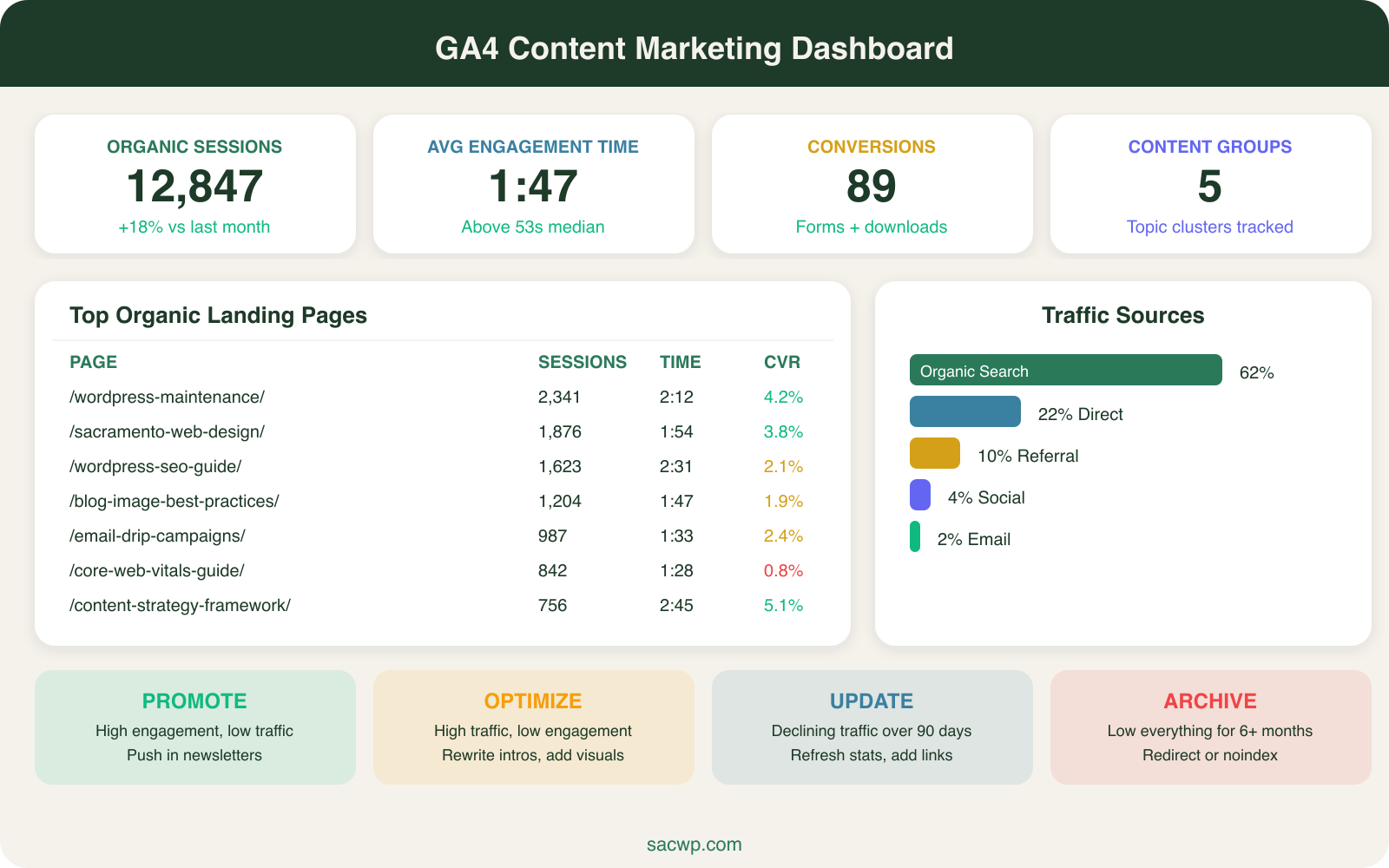
1. Track Organic Landing Pages to Find Your Top Performers
The Landing Page report in GA4 tells you which blog posts actually earn traffic from Google. This is the single most important google analytics content marketing report because it connects your publishing effort to real search visibility.
GA4 path: Reports > Engagement > Landing Page.
Add a filter for Session default channel group = “Organic Search” to isolate content that ranks. I check this report weekly on every WordPress site I manage. Posts that appear in the top 20 get prioritized for updates and internal linking. Posts that never show up get audited for keyword gaps.
WordPress setup: Install Site Kit by Google (3M+ active installs) to surface this data directly inside your WordPress dashboard. It pulls GA4, Search Console, and PageSpeed data into one view without switching tabs.
Benchmark: HubSpot’s 2024 State of Marketing report found that blogs publishing 2-4 posts per week see 45% year-over-year organic traffic growth. If your landing page report shows flat or declining organic sessions, the problem is usually content quality or keyword targeting, not publishing frequency.
2. Measure Engagement Time Per Post
GA4 replaced bounce rate with “Average engagement time,” which tracks how long users actively interact with a page (scrolling, clicking, reading) rather than just having the tab open. This metric separates content that holds attention from content readers abandon after the first paragraph.
GA4 path: Reports > Engagement > Pages and Screens. Sort by “Average engagement time” descending.
I flag any blog post with engagement time under 30 seconds. For a 1,500-word article, that means readers are not getting past the introduction. These posts need stronger hooks, better formatting, or a complete rewrite.
Benchmark: Databox’s 2024 survey of 1,000+ websites found the median average engagement time is 53 seconds. WordPress blog posts in the 1,000-2,000 word range should target 1:30-2:30 of engagement time.
3. Set Up Conversion Events for Content Goals
Pageviews tell you content exists. Conversions tell you content works. GA4 lets you create custom events and mark them as conversions, which means you can track exactly which blog posts drive business outcomes.
Common content marketing conversions I configure on WordPress sites:
- Newsletter signup (form submission event)
- Contact form completion (lead generation event)
- PDF download (resource engagement event)
- Scroll to CTA section (interest signal event)
GA4 path: Admin > Events > Create Event. Then toggle “Mark as conversion” for any event that represents a business goal.
WordPress shortcut: MonsterInsights (3M+ active installs) auto-tracks form submissions from popular plugins like WPForms, Gravity Forms, and Contact Form 7 without custom event setup. It also tracks file downloads and outbound link clicks out of the box.
If you are not tracking conversions, you are measuring activity instead of results. I have seen WordPress sites with 50,000 monthly pageviews generate zero leads because their content attracted the wrong audience. Conversion tracking exposes that gap fast.
4. Build Content Groupings by Topic Cluster
GA4 content groups let you aggregate performance data by topic instead of analyzing individual URLs. This is critical for content strategy frameworks built around topic clusters, where 5-10 supporting posts link to a single pillar page.
How I set this up:
- Create a custom dimension in GA4 (Admin > Custom Definitions > Create Custom Dimension)
- Name it “Content Group” with scope set to “Event”
- Use Google Tag Manager to fire the dimension value based on URL path or page category
For WordPress sites, I map content groups to blog categories. A site with categories like “SEO,” “Content Marketing,” and “WordPress Development” gets one content group per category. Then I can compare total sessions, engagement time, and conversions across entire topic clusters instead of guessing which category performs best.
GA4 path (after setup): Reports > Engagement > Pages and Screens. Add “Content Group” as a secondary dimension.
This report has changed how I allocate content budgets. One client discovered their “email marketing” cluster drove 3x more conversions than their “social media” cluster, despite getting half the traffic. They shifted publishing frequency accordingly and saw lead volume increase 40% in one quarter.
5. Analyze Traffic Source Breakdowns for Each Post
Not all traffic is equal. A blog post that gets 1,000 visits from organic search is more valuable than one that gets 5,000 visits from a Reddit spike that disappears in 48 hours. The Traffic Acquisition report broken down by landing page shows you exactly where each post’s audience comes from.
GA4 path: Reports > Acquisition > Traffic Acquisition. Add “Landing page” as a secondary dimension.
I use this report to evaluate content promotion strategies. If a post gets strong organic traffic but zero social referrals, it does not need promotion help. If a post gets heavy social traffic but no organic sessions after 90 days, it needs SEO work.
Key channels to monitor:
- Organic Search: Sustainable, compounding traffic from Google
- Direct: Often returning readers who bookmarked your content
- Referral: Backlinks from other sites (check quality in Search Console)
- Organic Social: Traffic from unpaid social posts
- Email: Newsletter-driven visits (tag your links with UTM parameters)
6. Use Path Exploration to Map Reader Journeys
The Explore section in GA4 contains the Path Exploration report, which shows the exact sequence of pages users visit after landing on your content. This reveals whether your blog posts guide readers deeper into your site or lose them after one page.
GA4 path: Explore > Path Exploration. Set “Landing page” as the starting point.
I run this report monthly on WordPress sites to answer one question: do blog readers visit service pages? If the path exploration shows that readers land on a blog post and immediately leave, the internal linking strategy needs work. If readers consistently move from blog posts to service pages to the contact page, the content funnel is working.
Practical example: On one WordPress site, path exploration revealed that readers of “how-to” posts visited an average of 2.8 pages per session, while readers of “what is” definition posts visited 1.2 pages. I restructured the content calendar to prioritize how-to content and added stronger CTAs to definition posts. Pages per session increased 35% in two months.
7. Build a Custom Content Marketing Dashboard
GA4’s default reports spread content marketing data across six different sections. I build a custom dashboard using GA4’s Library feature (or Looker Studio for more flexibility) that puts every content metric on one screen.
My standard content marketing dashboard includes:
- Organic sessions trend (28-day rolling)
- Top 10 landing pages by organic traffic
- Average engagement time by content group
- Conversion events by landing page
- New vs. returning user ratio
- Traffic source breakdown
GA4 path: Reports > Library > Create new collection.
WordPress alternative: Site Kit by Google displays a summary dashboard inside WordPress admin, but it is limited to pre-built widgets. For custom dashboards, connect GA4 to Looker Studio (free) and build exactly the views you need.
The dashboard saves 20-30 minutes per week compared to clicking through individual GA4 reports. I share it with clients via Looker Studio links so they can check performance without needing GA4 access.
8. Run a Monthly Content Performance Audit
All seven techniques above generate data. This eighth step turns that data into action. I run a monthly content marketing audit on every WordPress site I manage, using GA4 data to sort every published post into one of four buckets.
The four-bucket framework:
- Promote: High engagement, low traffic. These posts convert well but need more visibility. Push them in newsletters, add internal links from high-traffic pages, and consider paid promotion.
- Optimize: High traffic, low engagement. Readers find these posts but leave quickly. Rewrite introductions, improve formatting, add visuals, and strengthen the value proposition.
- Update: Declining traffic over 90 days. Refresh outdated stats, add new sections, update the publish date, and resubmit to Google Search Console.
- Archive: Low traffic, low engagement, no conversions for 6+ months. Redirect to a stronger post on the same topic or noindex to consolidate authority.
GA4 data I pull for each audit:
- Sessions (last 30 days vs. previous 30 days)
- Average engagement time
- Conversion events attributed to the post
- Traffic source mix
I export this data from GA4 into a spreadsheet, score each post, and create a prioritized action list. This process consistently identifies 10-15% of a site’s content library that needs immediate attention, either because it is underperforming or because a small update could unlock significant traffic gains.
Connecting GA4 Data to WordPress Workflows
The gap between analytics data and content action is where most WordPress site owners stall. You can pull perfect reports in GA4, but if the insights do not flow back into your publishing workflow, the data is wasted.
I close this gap with three WordPress-specific practices:
- Editorial calendar tags. Every post in my editorial calendar gets tagged with its GA4 performance bucket (promote, optimize, update, archive) after each monthly audit.
- Site Kit dashboard checks. Before publishing a new post, I check Site Kit inside WordPress to see how similar existing posts perform. This prevents publishing duplicate content that cannibalizes rankings.
- UTM discipline. Every link I share in email newsletters, social posts, or partner communications gets UTM parameters. This feeds clean source data back into GA4 so the Traffic Acquisition report stays accurate.
How often should I check Google Analytics for content marketing?
Check your GA4 landing page report and traffic trends weekly. Run engagement and conversion analysis biweekly. Perform a full content audit monthly. Daily checks create noise and encourage reactive decisions based on normal traffic fluctuations.
What is the best Google Analytics plugin for WordPress?
Site Kit by Google is the best free option. It is built by Google, integrates GA4 natively, and surfaces key reports inside WordPress admin. MonsterInsights is the best premium option for sites that need automatic form tracking, ecommerce analytics, and custom dimensions without touching Google Tag Manager.
Can Google Analytics track individual blog post ROI?
Yes. Set up conversion events in GA4 for your key business actions (form submissions, purchases, signups). Then view the Landing Page report filtered by those conversion events. Each blog post will show exactly how many conversions it generated. Assign a dollar value to each conversion event in GA4 to calculate per-post ROI.
What GA4 metrics matter most for content marketing?
Organic sessions, average engagement time, and conversion events are the three metrics that connect content to business outcomes. Pageviews and user counts provide context but do not indicate whether content drives results. Focus on metrics that answer “does this content attract the right audience and move them toward a business goal?”
Start Measuring What Matters
Google Analytics gives WordPress content marketers everything they need to move from guessing to knowing. The eight techniques in this guide take less than a day to set up, and they pay for themselves within the first monthly audit when you discover which posts deserve more investment and which ones need a complete rethink.
If your WordPress site publishes content but does not measure its impact with GA4, you are leaving growth on the table. I help WordPress site owners set up analytics tracking, build content dashboards, and run performance audits that turn data into traffic. Get in touch and I will show you exactly where your content stands.